
Managing App Requests
Every tenant's app request arrives in one place for the super admin to review, pass to the mobile team, and close out with a download link. This page covers that side of the workflow.
What you'll learn
- How to review a tenant's app request
- How to read the credentials a tenant supplied
- How to talk to the tenant about a request
- How to deliver the finished app, request a correction, or cancel
Viewing requests
Go to Mobile App Requests → All Requests to see every request across all tenants, with the tenant name and domain alongside each one. You can search, filter, and paginate to find a request quickly.
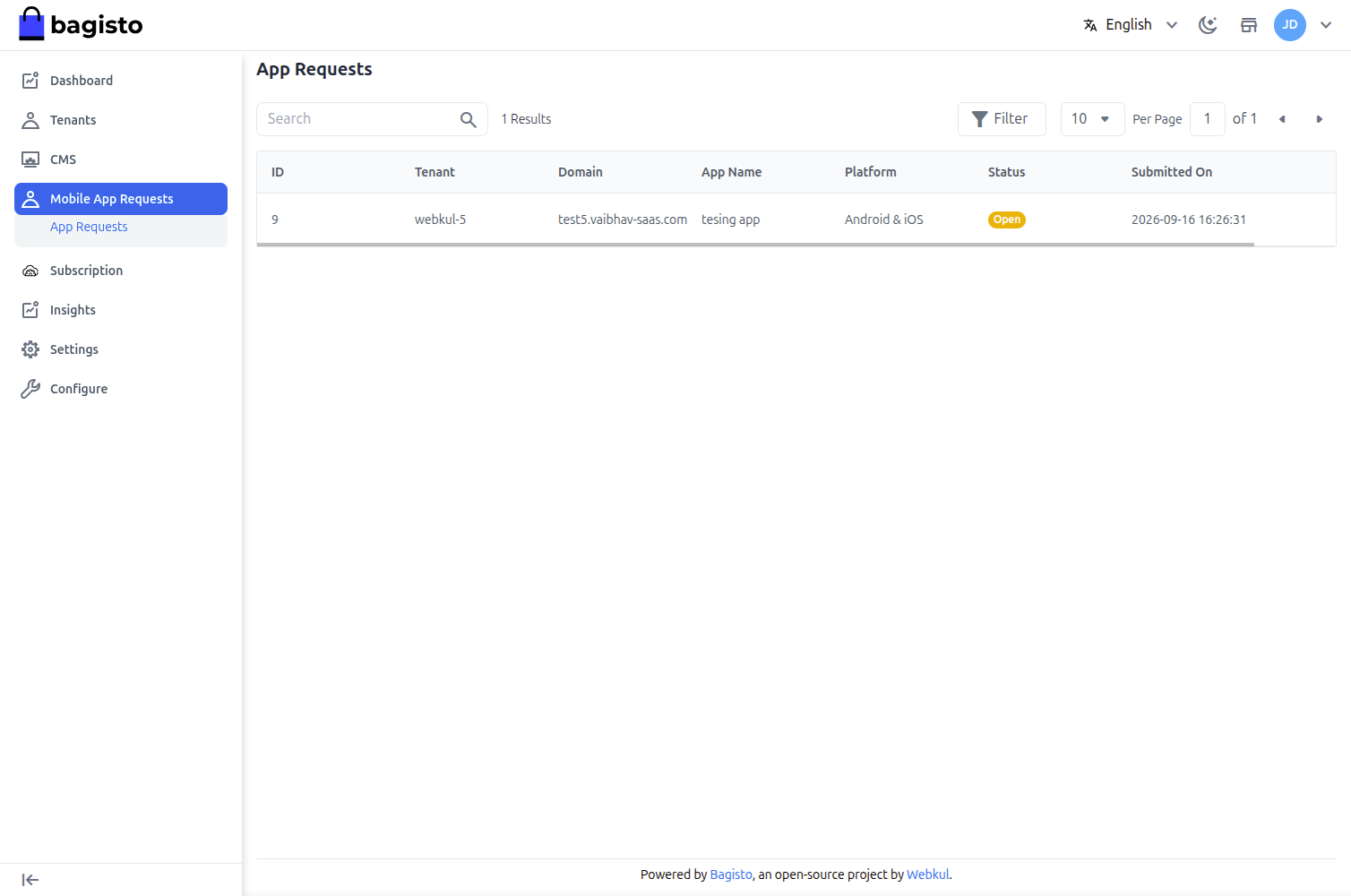
Click the View (eye) icon on a row to open the full request.
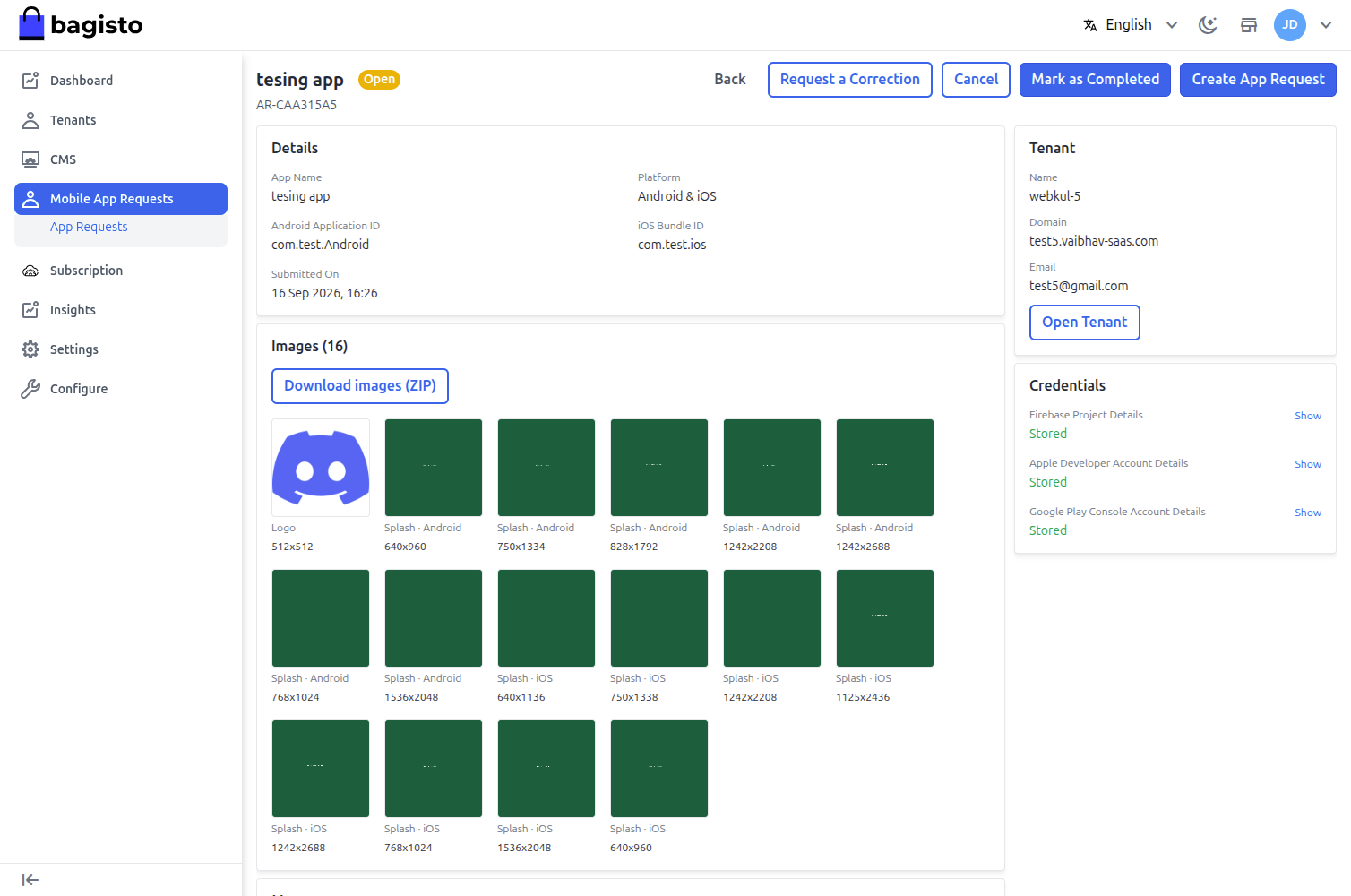
The detail screen shows the app name, platform, application IDs, every generated image, and the credential groups the tenant supplied.
Reading the credentials
Credentials are stored encrypted and listed as Stored. The mobile team needs them to build the app, so the super admin can read them — but only on request: each group has a Show link that reveals the account type, the invitation note and the full details, and a Hide link that puts them away again.
Nothing is revealed by default, so opening a request during a screen share does not put an Apple password on the screen.
Downloading the images
Select Download images (ZIP) to get everything in one archive, foldered by platform.
- android/ — a
splash/folder with 7 sizes, named by their exact pixels, and alogo/folder. - ios/ — a
splash/folder with 8 sizes, named the same way, and alogo/folder. - README.txt — the app name, request reference, tenant, and what each folder holds.
Each platform folder carries its own copy of the logo, so a build team working on one platform has everything in one place.
Step 1 — Send the request to the mobile team
With the request open, select Create App Request. The mobile team's own request form opens in a new tab, where the build is booked in.
Everything the team needs is on the request screen itself: Download images (ZIP) gives them the artwork, and the credential groups can be revealed as described above.
WARNING
Credentials are never e-mailed and never leave the panel on their own. Copy them from the request when the team asks, and only then.
Step 2 — Deliver the app
When the team returns the finished build, paste its URL into Mark as Completed, with an optional version.
A request for one platform asks for one URL. A request covering both asks for two, because the builds live at different addresses — an .apk or .aab for Android, an App Store link for iOS.
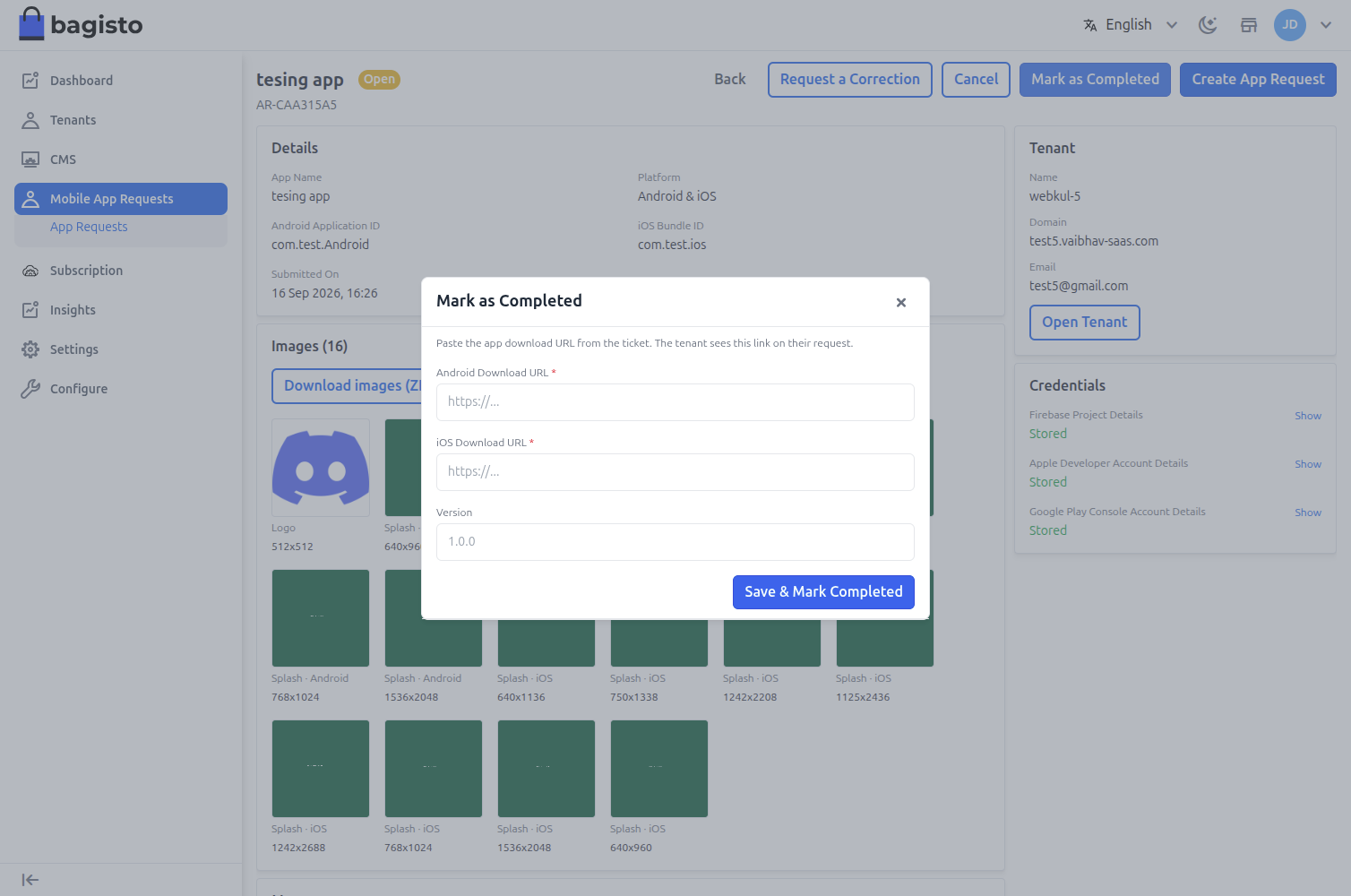
Saving records the links, moves the request to Completed, and e-mails the tenant. Issuing new links disables any earlier ones.
Requesting a correction
If something the tenant submitted is wrong — a logo that reads badly on white, the wrong bundle ID — you do not have to cancel the whole request.
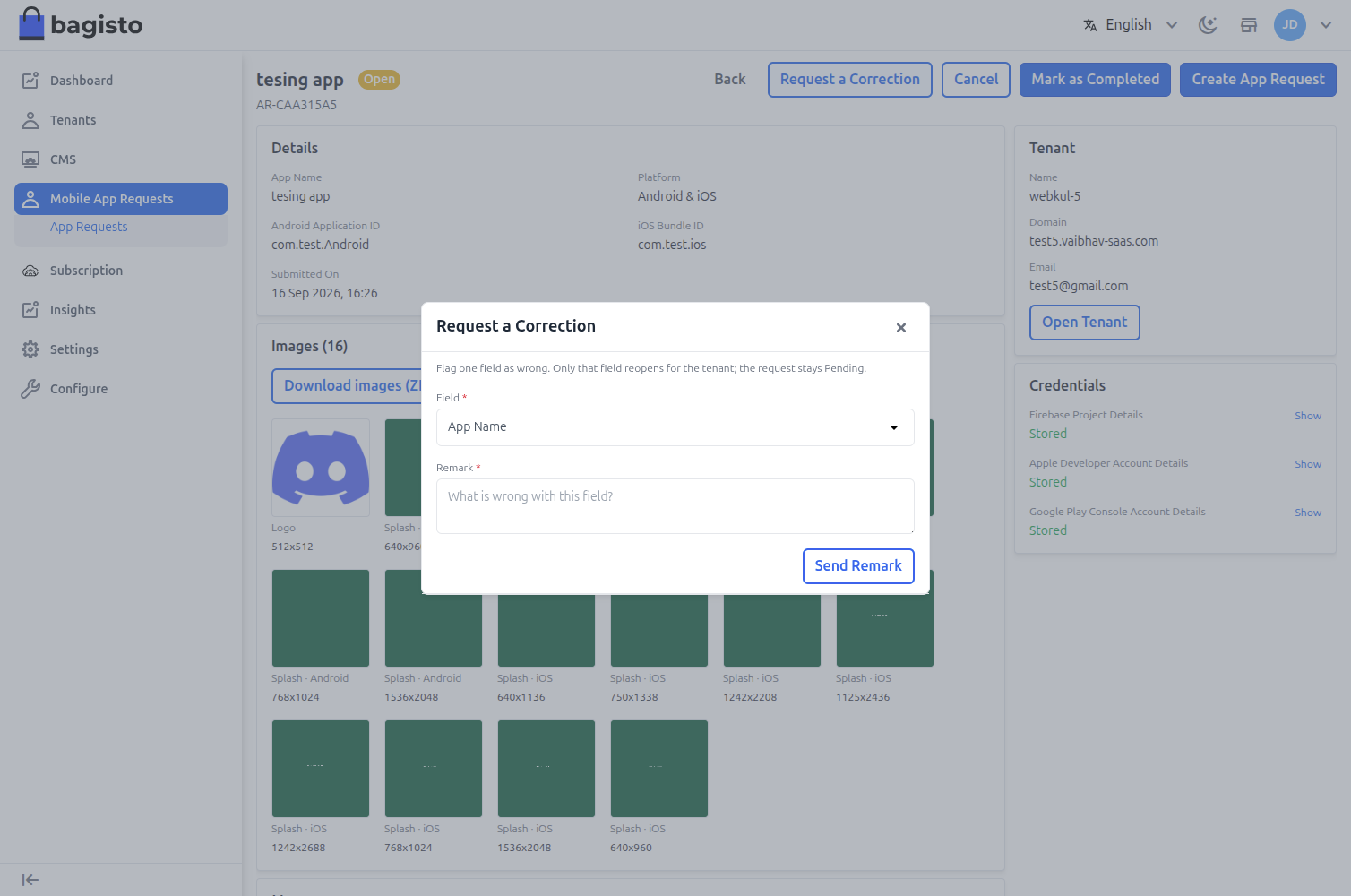
Use Request a Correction on the field in question and give a reason. The request stays Open and only that one field reopens for the tenant to edit; everything else remains locked. The tenant is e-mailed with your reason.
Canceling a request
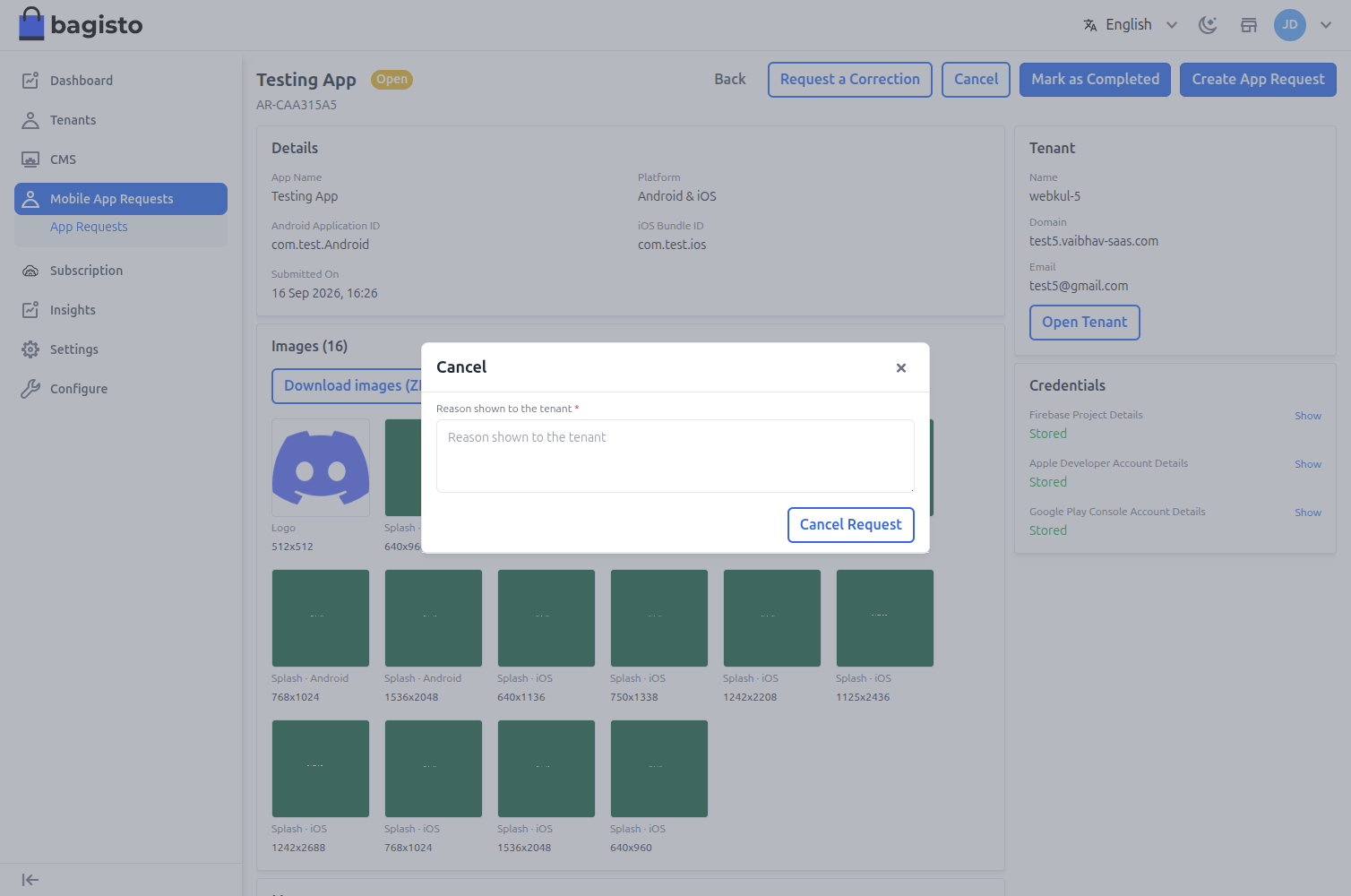
If the request cannot go ahead at all, use Cancel and give a reason. The tenant is e-mailed, and the reason is shown on their copy of the request.
Canceling also frees the platform, so the tenant can raise a fresh request for it. Create App Request disappears from a canceled request — there is no build left to ask for.
Talking to the tenant
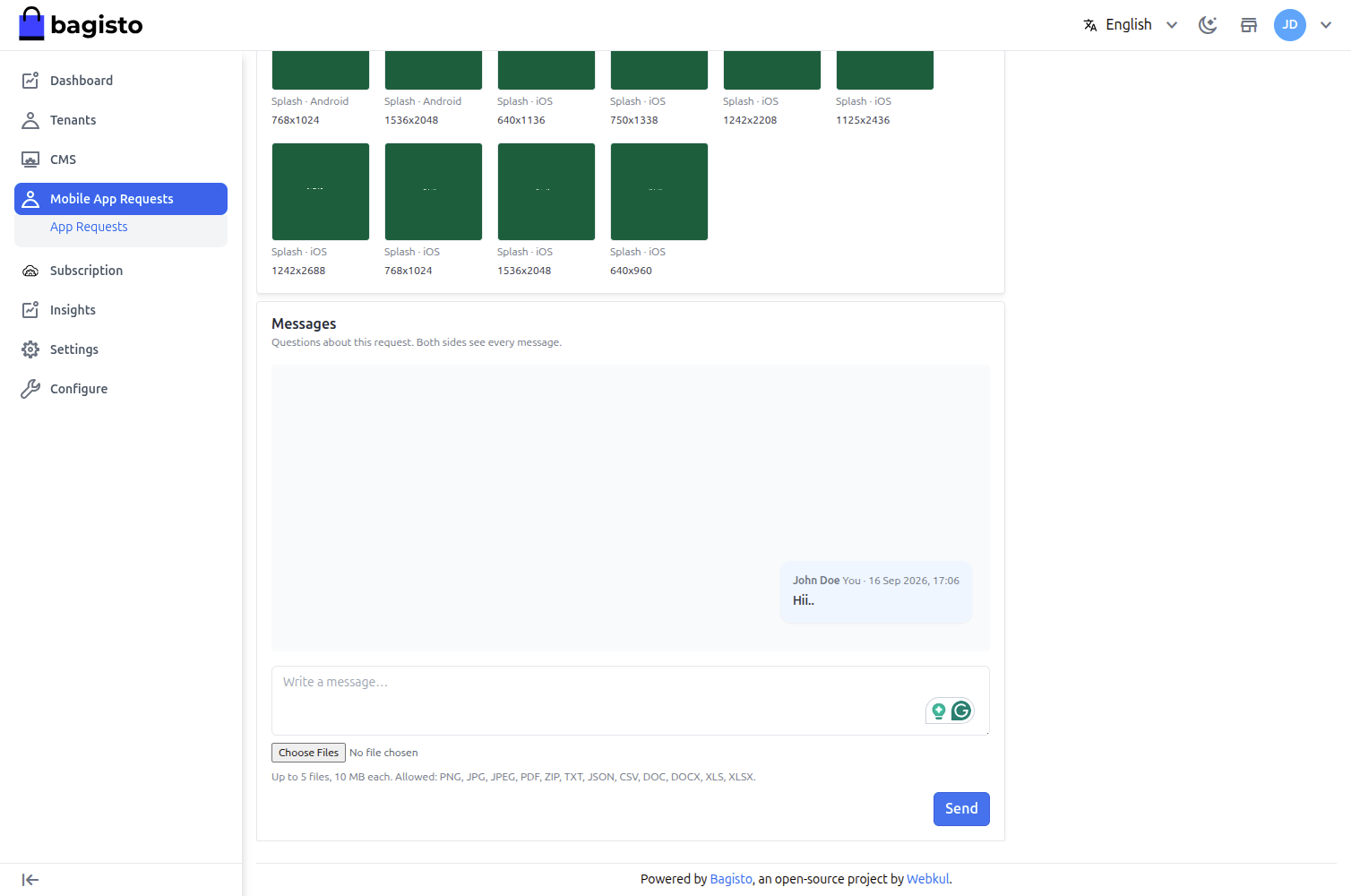
Every request carries a Messages thread, shared by the super admin and the tenant. Use it for anything that is not a field correction — a question about an account, a screenshot from the store review, a note about timing.
- Both sides see every message, with who wrote it and when.
- Files can be attached: up to 5 per message, 10 MB each (PNG, JPG, PDF, ZIP, TXT, JSON, CSV, DOC, DOCX, XLS, XLSX).
- The other side is e-mailed that a message is waiting. Attachments stay in the panel and are never e-mailed.
- The thread closes for new messages once the request is completed or canceled, and stays readable.
Statuses
- Open — the tenant has submitted. The form is locked, you can request a correction on individual fields, and the Messages thread is live.
- Completed — the download links are recorded and the tenant has been e-mailed.
- Canceled — you stopped it, with a reason the tenant can read.
TIP
Every request is scoped to the tenant that raised it. Tenants see only their own requests; the super admin sees them all in one list.