Requesting an App
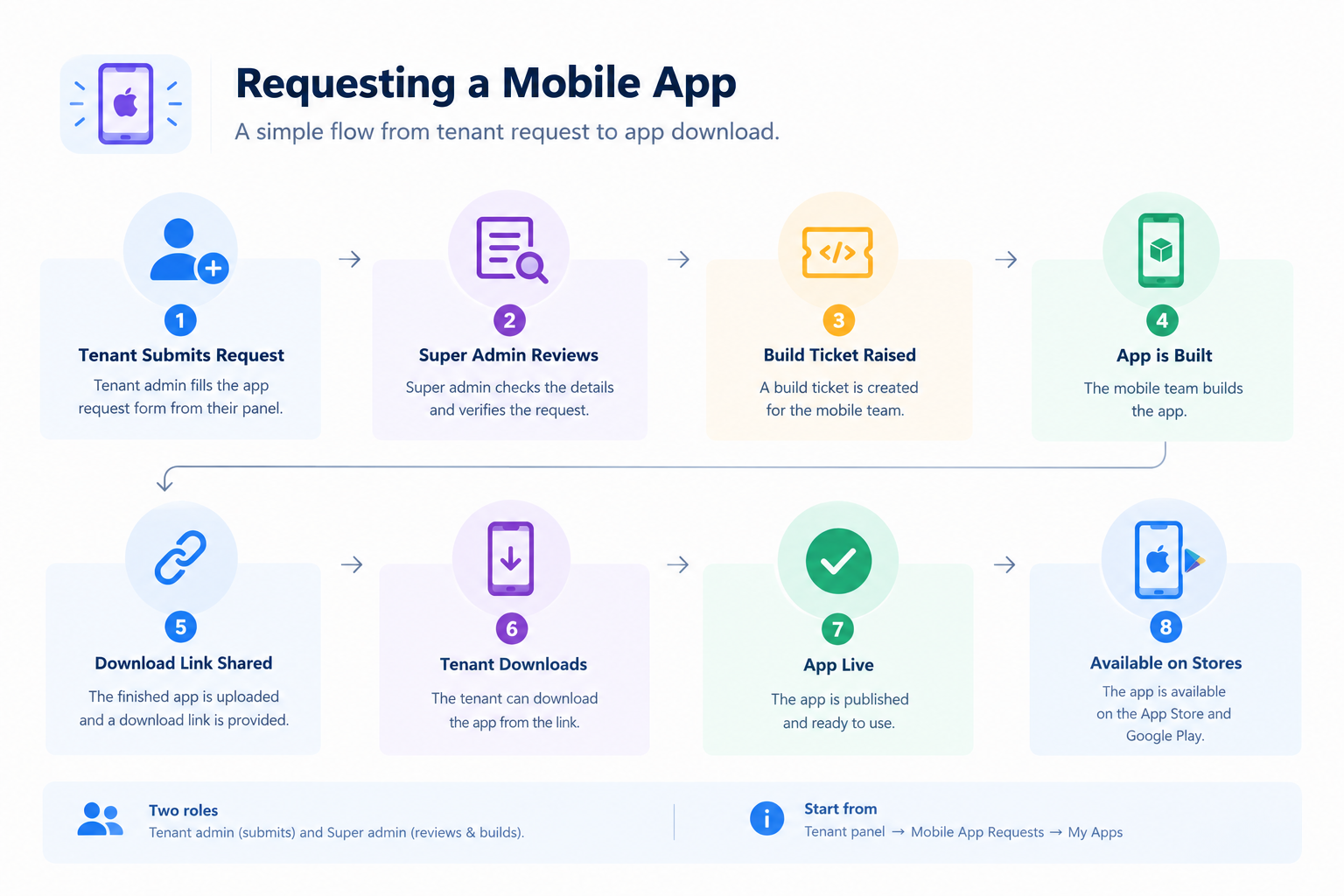
Tenants can ask the platform to build a mobile app for their store. The tenant submits one request with their branding and store account details, and the platform team returns a finished build they can share with their customers.
What you'll learn
- What to prepare before starting a request
- How a tenant submits an app request
- What happens after the request is submitted
- How to talk to the platform about a request
Before you begin
Have these ready. The form cannot be saved as a draft — once submitted it locks, and only fields the super admin flags can be changed afterwards.
- App name — the name shown under the app icon.
- App logo — PNG, exactly 512 × 512.
- Splash image — PNG, at least 1536 × 2688. One file, from which every required size is generated.
- Android Application ID — reverse-domain, such as
com.yourbrand.shop. Unique across every tenant, and fixed once published. - iOS Bundle ID — the same format, such as
com.yourbrand.shopios. - Apple Developer account — the account type, plus the login credentials.
- Google Play Console account — the account type, plus the login credentials.
- Firebase project — the project details.
One open request per platform
A tenant cannot raise a second request covering a platform that already has one open. Wait for the first to be completed or canceled.
Step 1 — Open My Apps
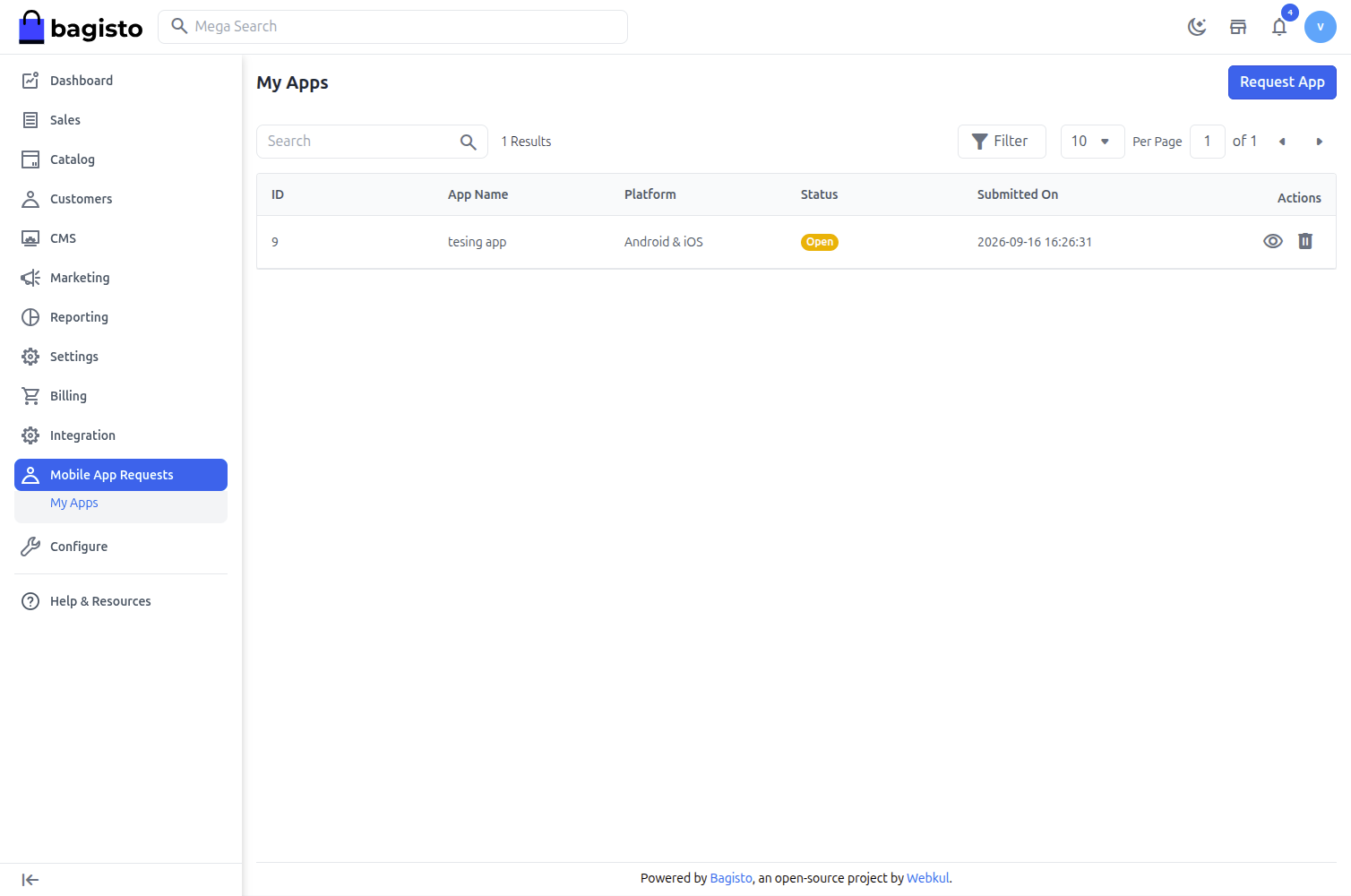
Sign in to the tenant admin panel and go to Mobile App Requests → My Apps. Every request the tenant has raised is listed here with its current status.
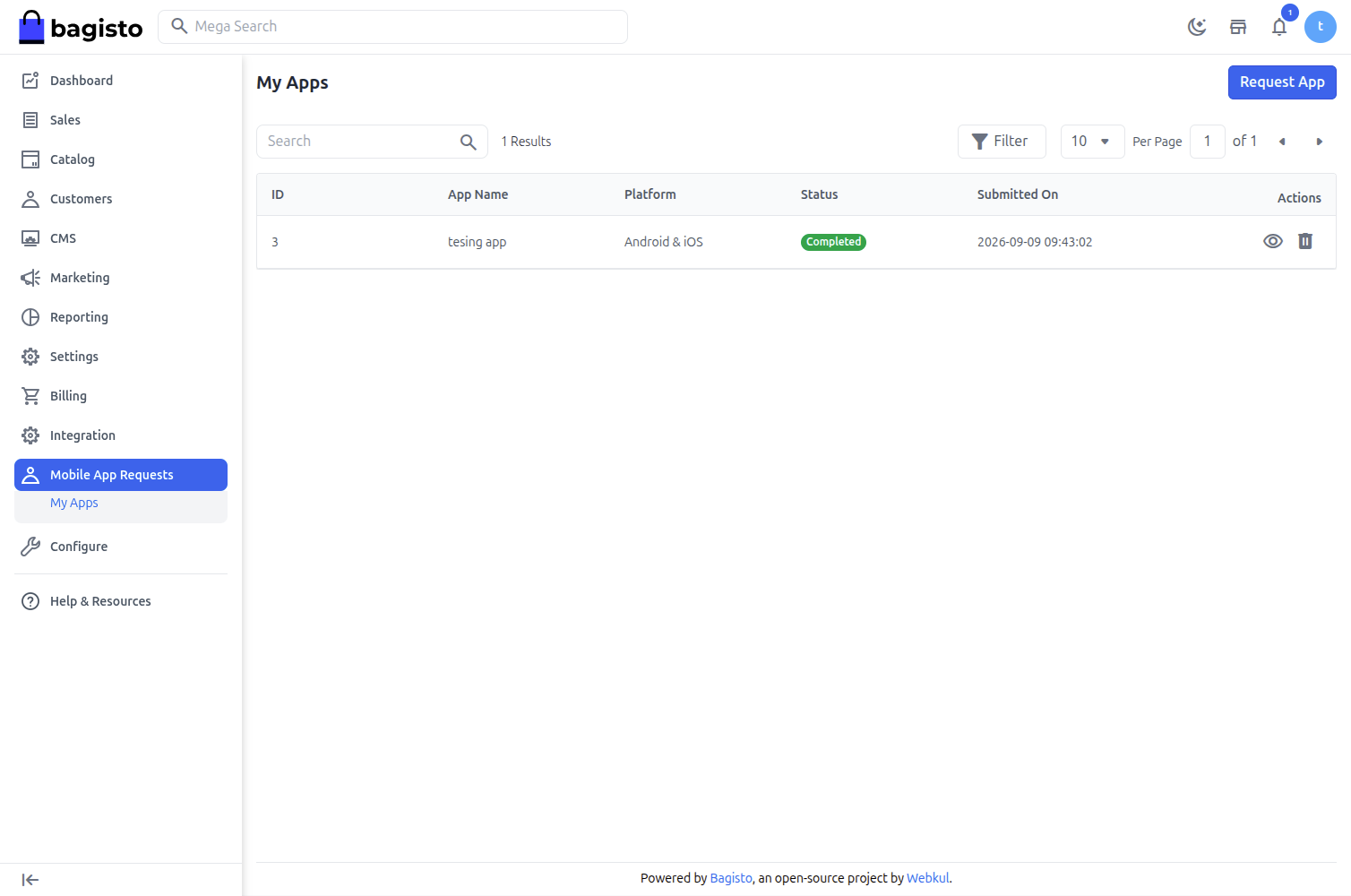
Select Request App in the top right to start a new request.
Step 2 — Fill in the request
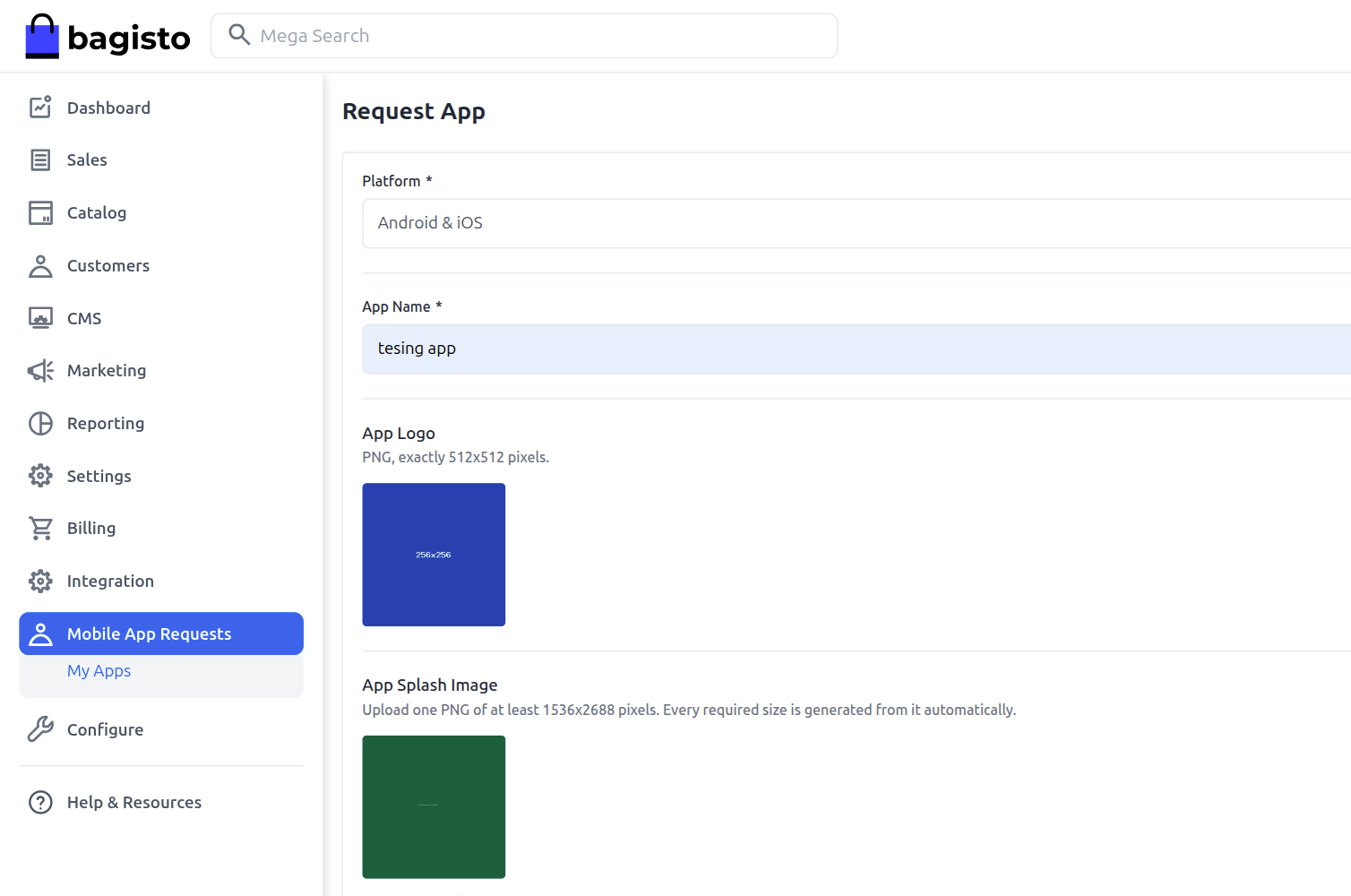
The form is one page. Choosing a platform hides the sections that do not apply — pick Android & iOS and everything is shown.
- App Name — shown under the app icon.
- App Logo — PNG, exactly 512 × 512. A wrong size is refused at upload.
- App Splash Image — one PNG, at least 1536 × 2688. The 15 required sizes are generated from it.
- Android Application ID — for example
com.yourbrand.shop. - iOS Bundle ID — for example
com.yourbrand.shopios. - Apple Developer Account — the account type, plus the login credentials.
- Google Play Console Account — the account type, plus the login credentials.
- Firebase Project — the project details.
Each account section carries a one-line hint and a More info link to that provider's documentation.
Apple and Google Play each ask for an account type — Organization or Individual. It tells the mobile team what the account can do before they start, since the two behave differently at release time.
Individual accounts
Google Play — Individual is accepted, but Google may require a closed test with 12 testers for 14 continuous days before the app can go to production. An Organization account avoids that.
Apple — Individual accounts cannot add team members, so the mobile team works from the Apple ID itself rather than being invited to the team.
The grey chips under the splash upload list every size that will be generated from it.
Select Submit Request.
If the form is refused
Your entries are kept and the reason is shown under the field it belongs to. Two refusals are worth knowing about:
- "This application ID is already in use." Application IDs are real store identifiers, so they must be unique across every tenant on the platform — not just your own store. Choose a different one.
- "You already have an open request for this platform." See the one-open-request rule above.
Uploaded images are the one thing that cannot be restored — no browser allows a file input to be refilled — so the logo and splash have to be selected again.
Step 3 — The request is submitted
You return to My Apps and the request appears as Open. Opening it shows everything that was submitted, including the generated images. Credentials are shown only as Stored — the tenant cannot read them back, though they can be replaced.
At this point the form is locked. Nothing more is needed from the tenant unless a correction is requested.
An open request can still be withdrawn: the Delete action stays on the row in My Apps while the request is open, and disappears once it is completed or canceled.
Step 4 — Get the app
When the build is ready the tenant is e-mailed, and the download links appear on the request under Your App is Ready.
A request for one platform gets one link. A request covering both gets two — an .apk or .aab for Android and an App Store link for iOS — each labelled with its platform.
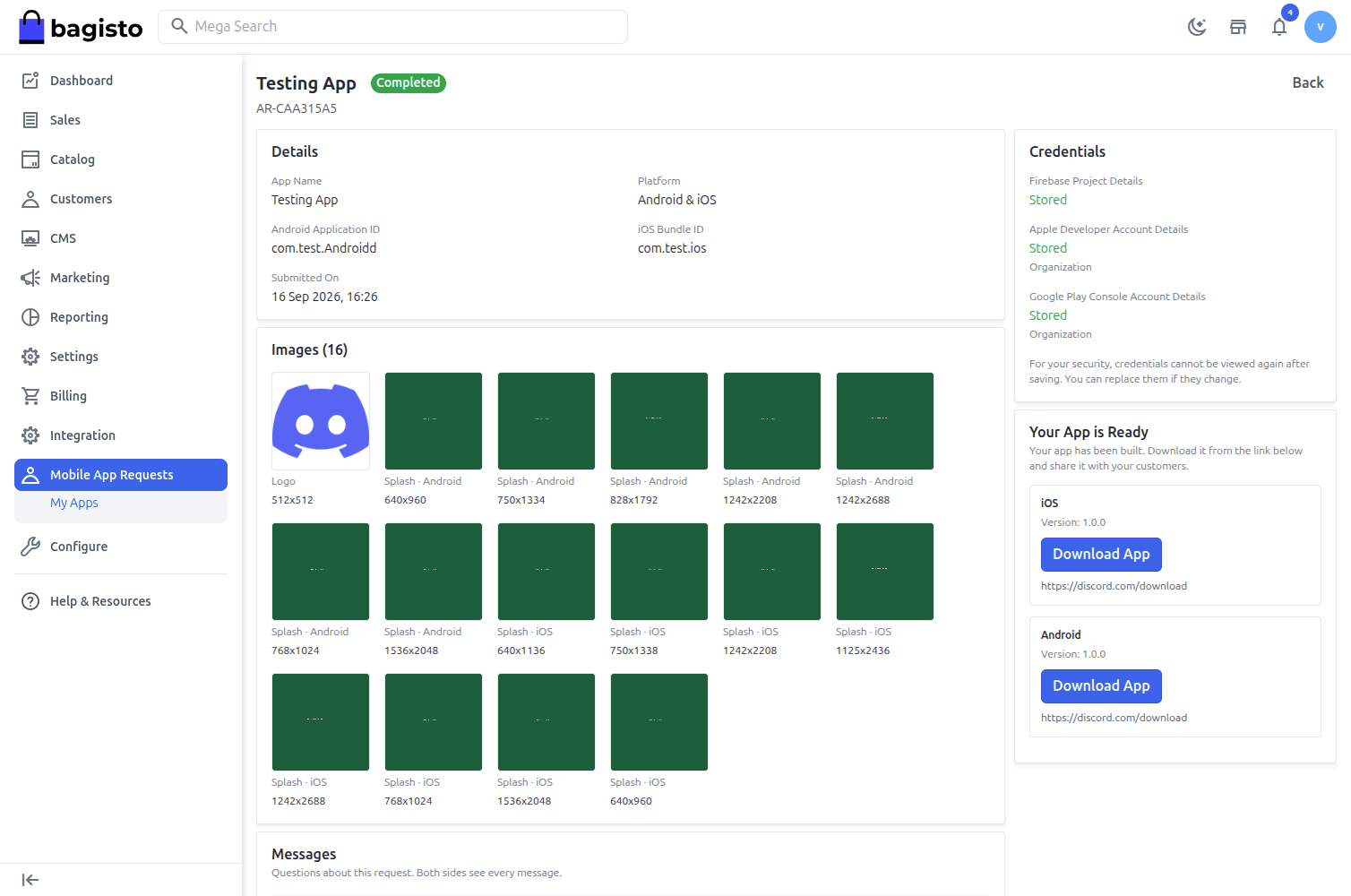
The tenant shares the links with their customers, and uploads the same build to their own Play Console or App Store Connect account.
If a correction is requested
While a request is Open, the super admin can ask for a correction on a single field. The request stays Open and only that field reopens for editing — everything else remains locked. The tenant is e-mailed with the reason, updates that one field, and saves.
Messaging the platform
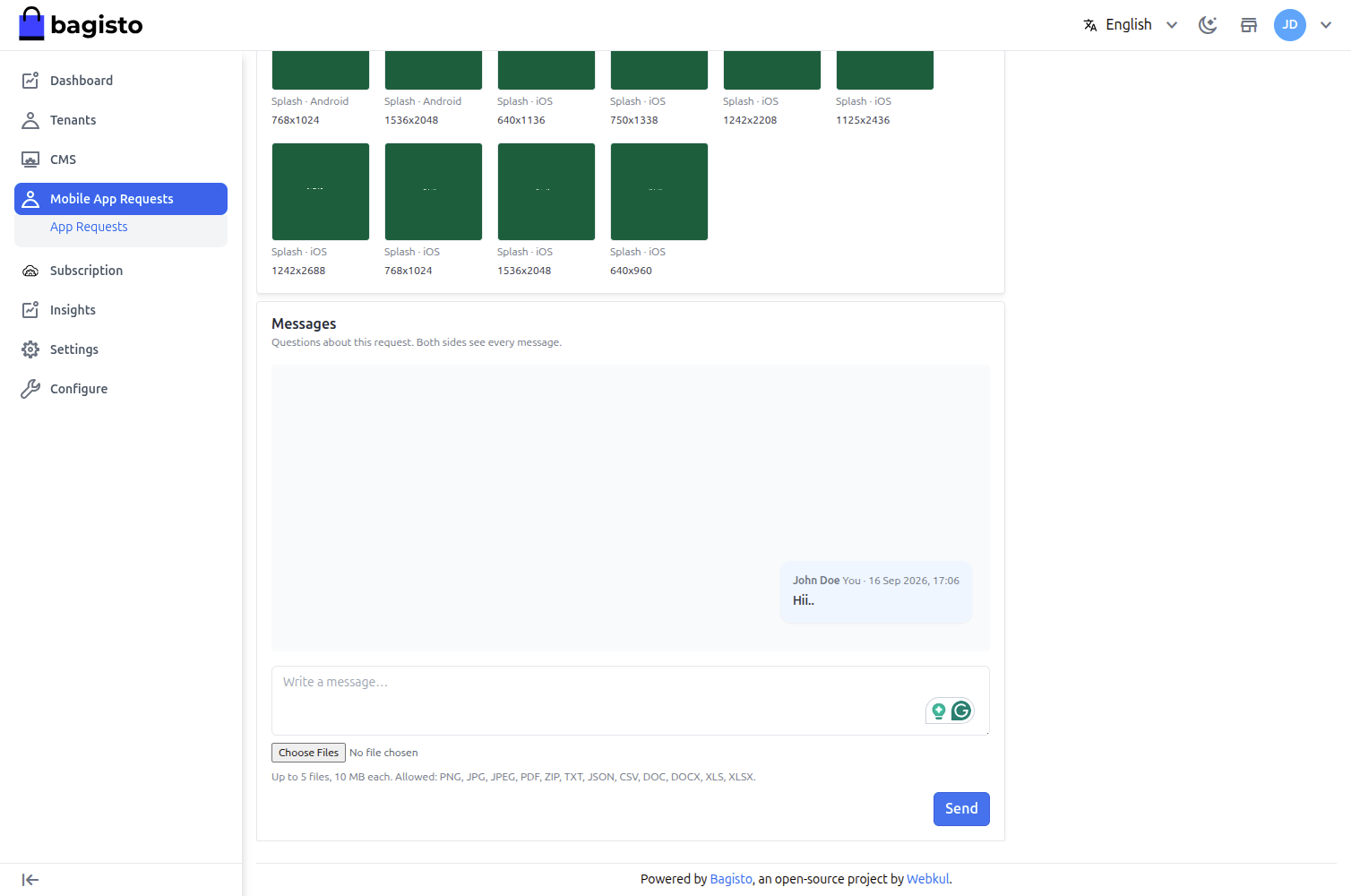
Every request carries a Messages thread the tenant shares with the platform team. Use it for anything that is not a field correction — a question about an account, a screenshot, a note about timing.
- Both sides see every message, with who wrote it and when.
- Files can be attached: up to 5 per message, 10 MB each (PNG, JPG, PDF, ZIP, TXT, JSON, CSV, DOC, DOCX, XLS, XLSX).
- The platform is e-mailed that a message is waiting, and the tenant is e-mailed when it replies. Attachments stay in the panel and are never e-mailed.
- The thread closes for new messages once the request is completed or canceled, and stays readable.
Statuses
- Open — the request has been submitted and the form is locked. It can still be withdrawn, corrections can be requested on it, and the Messages thread is live.
- Completed — the download links are recorded and the tenant has been e-mailed.
- Canceled — the platform stopped the request, with a reason the tenant can read.
TIP
The super admin never sees a tenant's request until it is submitted, and a tenant never sees another tenant's requests. Every request is scoped to the store that raised it.