
Plan Management
Subscription plans are how the platform earns from its tenants. As super admin you build the plans, set what each one allows, and price them.
What you'll learn
- How to view your subscription plans
- How to create a plan and set its limits, price, and offers
- When a plan can no longer be deleted
Viewing plans
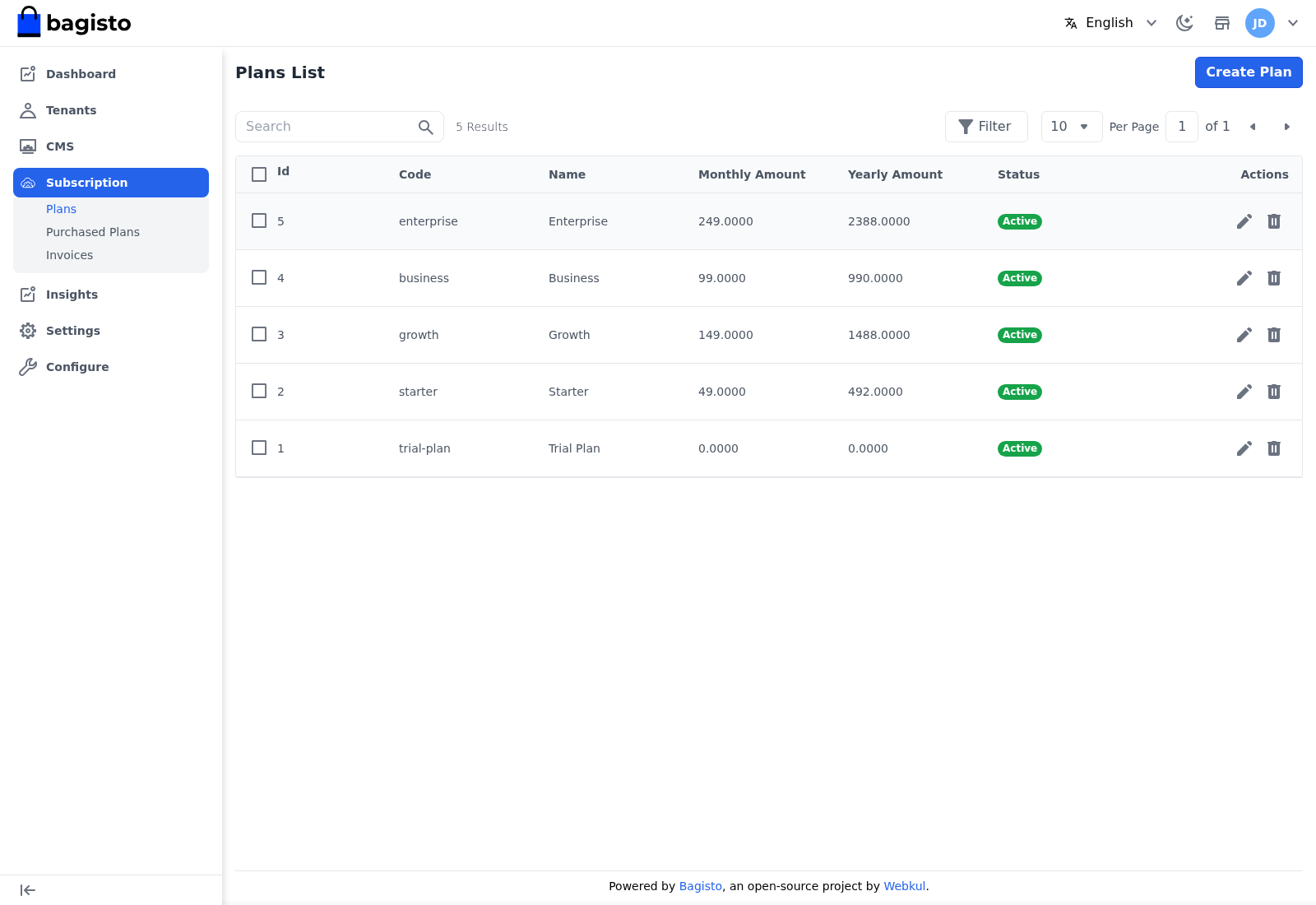
Go to Subscription → Plans to see every plan, with its code, name, monthly and yearly amount, and status.
Creating a plan
Click Create Plan and fill in the form.
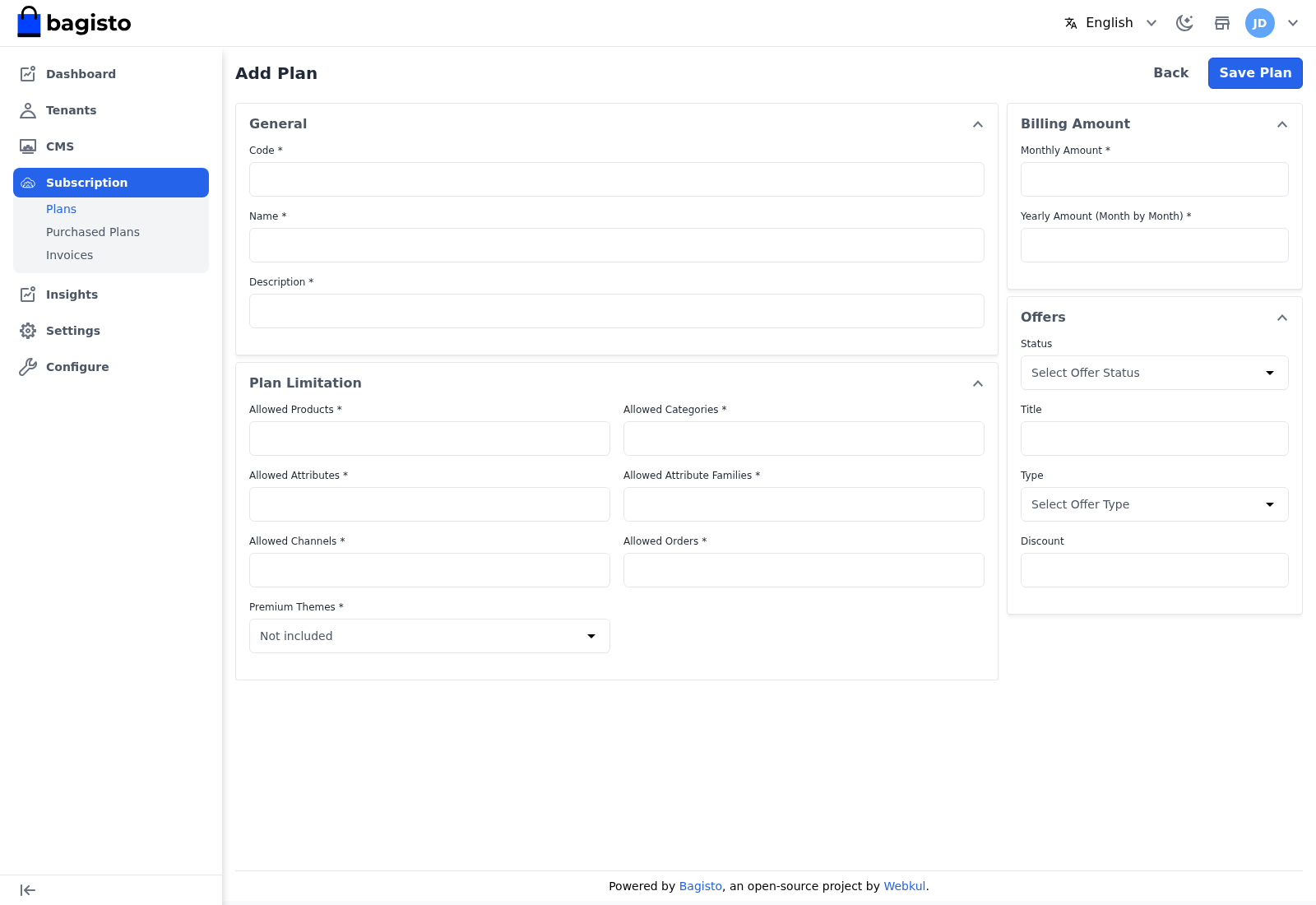
General
- Code — a unique identifier. Use only letters, numbers, dashes, and underscores.
- Name — the plan name a tenant sees, such as Starter or Growth.
- Description — a short summary of what the plan offers.
Billing Amount
- Monthly Amount — the price when billed monthly.
- Yearly Amount (Month by Month) — the per-month price when billed yearly.
Plan Limitation
Set the ceilings a tenant on this plan cannot exceed: Allowed Products, Allowed Categories, Allowed Attributes, Allowed Attribute Families, Allowed Channels, and Allowed Orders. Set Premium Themes to Included or Not included — this controls which storefront themes a tenant on the plan can use.
Offers
Add an optional discount shown against the plan: Status, Title, Type (Fixed or Percentage), and Discount.
Select Save Plan to publish it. You can Edit or Delete a plan later from the list.
WARNING
Once a tenant has purchased a plan, you can no longer delete it, because it is tied to that tenant's subscription. Edit it instead, or create a new plan.
TIP
Keep plan limits meaningful — they drive the usage bars a tenant sees on their billing overview, and hitting a limit is what prompts them to upgrade.